Dell XPS Won't Turn On? A Repair Tech Explains What to Check First


You press the power button on your Dell XPS and nothing happens. No Windows logo, no fan noise, no screen and maybe not even a charging light.
If your Dell XPS won't turn on, it is easy to assume the laptop is completely dead and immediately start shopping for a replacement.
But don't do that yet.
A Dell XPS that refuses to power on can have several different causes, and some are much simpler to fix than others. The problem could be the charger, battery, charging port, power management system, display, or another internal component.
As a repair tech serving the Dallas-Fort Worth area, one of the first things I recommend is figuring out whether you actually have a no-power problem or a no-display problem.
Those two situations can look very similar.
Here is what to check first before assuming your Dell XPS needs a major repair.
First: What Happens When You Press the Power Button?

Start by paying attention to exactly what the laptop does.
When you press the power button, do you see:
No lights at all?
A charging LED?
Keyboard backlighting?
Fan movement?
A brief flash on the display?
A Dell logo that disappears?
Beeping or diagnostic lights?
A black screen while the laptop appears to be running?
These details matter.
Dell separates startup problems into categories such as No Power, No POST, No Boot, and No Video, and each one can point toward a different cause.
If there is absolutely no sign of life, start with power.
If the fans turn on but the screen stays black, you may be dealing with a display or startup issue instead.
Check the Charger Before Blaming the Laptop

This sounds obvious, but it is one of the first things I would check.
Make sure the charger is properly connected to both the wall outlet and the laptop.
Then look at the charger and cable.
Are there cuts, exposed wires, bent connectors, or signs of physical damage?
Also try another known-working outlet.
Dell recommends checking the AC adapter, cable, charging connection, and outlet when troubleshooting power and charging problems.
If your XPS uses USB-C charging, make sure you are using a compatible charger with sufficient power for your specific model.
A charger that physically fits does not necessarily mean it can provide the power your laptop needs.
Dell notes that an underpowered adapter may be able to power a laptop without properly charging its battery.
Look for Charging or Power Lights

Before trying anything complicated, connect the charger and watch the laptop.
Do you see an LED?
Does it stay on?
Does it blink?
Does it change color?
Or is there absolutely nothing?
These clues can help narrow down the problem.
For Dell laptops, an absent charging indicator can point toward an issue with power reaching the system, the charging port, or the adapter. Dell's troubleshooting guidance recommends checking connections and trying a different compatible charger or outlet when appropriate.
If your charger appears completely normal but your XPS gives you no signs of life, the problem may be inside the laptop.
Try a Hard Reset

This is one of the easiest things you can try before taking the laptop to a repair shop.
A hard reset can clear residual electrical charge and sometimes resolve a temporary power-management problem.
For a Dell laptop with a non-removable battery, Dell's current guidance includes disconnecting external peripherals, disconnecting the charger, and holding the power button for around 30 seconds on supported systems before attempting to power the laptop on again.
A simple approach is:
Disconnect the charger.
Remove USB devices, external monitors, docks, SD cards, and other peripherals.
Press and hold the power button for about 30 seconds.
Release the button.
Connect the charger again.
Try powering on the XPS.
If it starts normally afterward, the problem may have been related to a temporary power state rather than a failed motherboard.
Disconnect Your Docking Station and Accessories
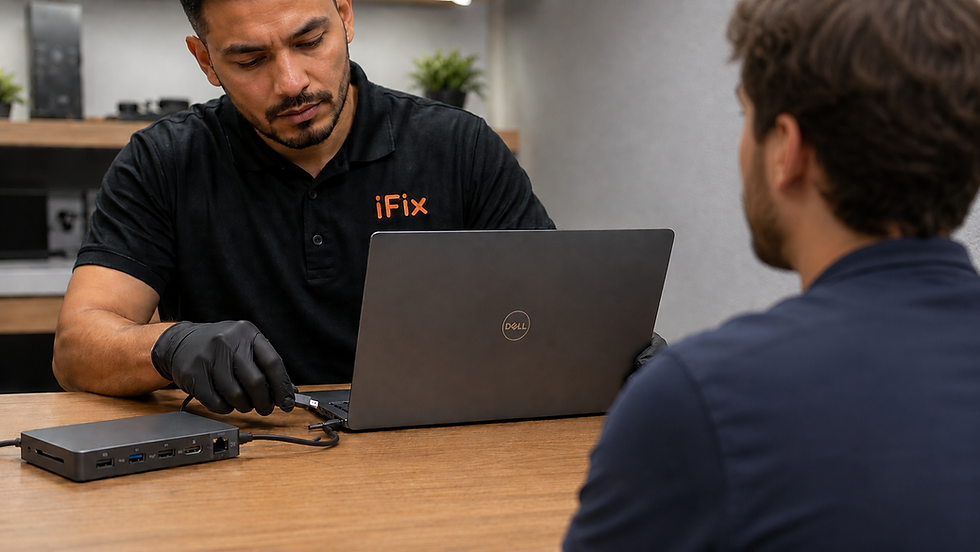
If you use your Dell XPS with a USB-C dock, external monitor, keyboard, mouse, storage device, or other accessories, disconnect everything.
Then try turning the laptop on by itself.
Why?
A faulty peripheral, dock, cable, or power connection can sometimes complicate the startup process.
Dell specifically recommends disconnecting external peripherals during certain no-power troubleshooting steps.
If the XPS turns on after everything is disconnected, reconnect your accessories one at a time.
That can help identify which device or connection is causing the problem.
What If the Laptop Turns On but the Screen Is Black?

This is where things get interesting.
Your Dell XPS may actually be powering on even though you cannot see anything.
Listen for the fan.
Look for keyboard lights.
Check whether the charging indicator is active.
If the laptop appears to be running, try increasing the display brightness.
Dell specifically notes that a laptop can appear to have a blank screen when the display brightness is set extremely low.
You can also connect an external monitor if you have one available.
If the external display works while the laptop's built-in display remains black, the issue may involve the laptop screen, display cable, or related hardware rather than the entire computer.
This is why saying "my Dell won't turn on" does not always mean the motherboard has failed.
Check Whether Your XPS Is Actually Reaching POST
You may hear technicians use the term POST.
It stands for Power-On Self-Test.
This is the process that occurs when the computer checks essential hardware before loading the operating system.
If your Dell XPS powers on but cannot complete this stage, you may have a No POST issue.
Dell's current troubleshooting documentation specifically covers No POST situations and recommends working through diagnostic steps to identify hardware problems.
Possible causes can include:
Memory-related problems
Motherboard issues
BIOS or firmware problems
Battery or power delivery problems
Display-related problems
Other internal hardware failures
If your laptop consistently fails at this stage, it is usually time to move beyond basic troubleshooting.
Try Dell's Built-In Diagnostics If the Laptop Responds
If your XPS can reach the Dell logo or boot menu, you may be able to run Dell's built-in hardware diagnostics.
Dell's preboot diagnostic tools can test hardware before Windows loads. On supported systems, Dell says you can press F12 repeatedly at the Dell logo and select Diagnostics from the One Time Boot Menu.
The diagnostic process can help identify hardware that is not functioning correctly.
If you receive an error code, write it down.
Don't just restart the laptop and forget about it.
That code can be extremely useful to a technician when determining what needs to be repaired.
Battery Problems Can Prevent a Dell XPS From Starting
The battery is another common suspect.
Laptop batteries naturally lose capacity over time, and Dell notes that battery performance can decline because of age, charge cycles, and other conditions.
If your XPS had been experiencing symptoms such as:
Very short battery life
Unexpected shutdowns
Charging problems
Battery percentage getting stuck
The laptop only working while plugged in
Increasingly unreliable startup
then a battery or charging problem deserves attention.
Dell's current guidance also notes that if a system powers on with the AC adapter but not on battery power, the battery may not be delivering enough power.
That is a useful clue.
What If Your Dell XPS Only Turns On When Plugged In?
This is a particularly useful symptom.
If the XPS starts normally while connected to the charger but immediately shuts down when you unplug it, the battery becomes a strong suspect.
However, don't automatically order a replacement battery.
The charging circuit, battery connection, adapter, or power-management system could also be involved.
A proper diagnosis can prevent you from replacing a battery that was not actually the problem.
Our laptop and computer repair services cover battery issues, startup problems, cracked screens, software issues, and other laptop problems.
Could the Charging Port Be the Problem?
Yes, a damaged or loose charging port can prevent your Dell XPS from receiving power correctly.
Look at the port carefully.
Is there visible damage?
Does the connector feel unusually loose?
Does the charging indicator change when you gently move the connector?
Do not aggressively wiggle the charger. If the port appears damaged, stop using it and have it inspected.
Dell's charging guidance identifies the charging port as one possible source of power and charging problems. A professional inspection can determine whether the problem is the port, charger, battery, or deeper power circuitry.
DFW Heat Can Also Affect Laptop Performance
Here in North Texas, heat deserves a mention.
A laptop sitting inside a hot vehicle or operating in a poorly ventilated environment can experience significantly more thermal stress than one sitting in a cool office.
If your XPS had been running unusually hot before it stopped turning on, tell the technician.
Previous overheating can provide useful context during diagnosis.
You should also pay attention to symptoms such as:
Fans running constantly
Sudden shutdowns
Performance slowing down
Excessive heat near the keyboard or bottom panel
The laptop refusing to restart after getting hot
Dell also maintains troubleshooting guidance for laptop overheating and thermal issues.
When Should You Stop Troubleshooting?
There is a point where repeatedly pressing the power button is not going to help.
If you have already:
Tested the outlet
Checked the charger
Disconnected accessories
Performed a hard reset
Tried powering on with the charger connected
Checked for power indicators
Attempted available diagnostics
and the XPS still shows no signs of life, it is time for a professional diagnosis.
Especially stop troubleshooting if the laptop has:
Liquid damage
A swollen battery
A burning smell
Visible internal damage
A damaged charging port
A recent major drop
Signs of a motherboard failure
A swollen or physically damaged lithium-ion battery should not be opened or handled casually.
Should You Repair or Replace Your Dell XPS?
This depends on the age and condition of your laptop.
A newer Dell XPS with a failed battery, charging port, or other isolated issue may absolutely be worth repairing.
An older XPS with multiple hardware failures may require a different calculation.
Before buying another laptop, find out what is actually wrong.
Our computer repair services cover hardware and software problems across laptops and computers, and iFix provides free estimates with affordable diagnostics when needed.
Knowing the repair cost gives you a much better basis for deciding whether to fix the machine or replace it.
Dell XPS Repair in Bedford, Texas
If you're in Bedford, Hurst, Euless, Colleyville, or the surrounding Mid-Cities area, iFix Bedford is located at 3338 Harwood Road, Bedford, TX 76021.
The location handles laptop and computer problems, including power issues, screen problems, battery concerns, and other hardware or software repairs. iFix also advertises same-day repair availability for many services and offers free estimates.
So if your XPS suddenly went dark during work, school, or an important project, you can have the laptop diagnosed before deciding whether it needs a major repair.
Need Dell Computer Repair Near The Colony?
For customers in The Colony and the northern part of DFW, iFix's shop at 4300 Main Street, The Colony, TX 75056 provides another local option for laptop and computer repair.
The Colony location serves customers looking for computer repairs across the surrounding North Texas communities, including Dell laptops and other PC brands. iFix's location pages also highlight computer and laptop repair among the services available.
If your Dell XPS is refusing to cooperate, you can also schedule a repair online or visit the shop for an evaluation.
What Should You Tell the Repair Technician?
When you bring in a Dell XPS that won't turn on, the information you provide can make the diagnosis easier.
Tell the technician:
When did the problem start?
Did it happen suddenly or gradually?
Was the laptop dropped?
Even a small drop can be relevant.
Was it exposed to liquid?
Coffee, water, and other liquids can create delayed problems.
Was the laptop unusually hot?
This can provide useful clues.
Was it charging normally beforehand?
A history of charging problems may point toward the battery, charger, port, or power circuitry.
Did anything change before it stopped working?
A Windows update, BIOS update, new accessory, docking station, or hardware change can all be relevant.
The more information you provide, the easier it can be to narrow down the problem.
The Bottom Line: Don't Assume Your Dell XPS Is Dead
A Dell XPS that won't turn on can be stressful, especially if you have work, school files, photos, or other important information stored on it.
But "won't turn on" does not automatically mean "needs to be replaced."
Start with the simple things.
Check the charger.
Try another outlet.
Disconnect accessories.
Perform a hard reset.
Look for power indicators.
Determine whether the laptop is actually running with a black display.
If your XPS can reach the Dell logo, use the built-in diagnostics where supported.
And if none of those steps work, get the laptop professionally diagnosed.
Dell itself recommends moving to support or repair options when troubleshooting does not resolve a no-power or No POST issue.
For DFW customers, that means you do not have to immediately replace an expensive laptop just because the power button stopped responding.
Find out what failed first. Then decide what to do next.
Frequently Asked Questions
Why won't my Dell XPS turn on?
Common possibilities include a dead or failing battery, faulty charger, charging-port problem, power-management issue, motherboard failure, or a startup problem. The first step is determining whether the laptop has no power at all or is powering on without displaying an image.
How do I force restart a Dell XPS that won't turn on?
Disconnect external accessories and the charger, then hold the power button for about 30 seconds on supported Dell laptops before reconnecting the charger and trying again. Dell's exact procedure can vary by model.
How do I know if my Dell XPS charger is bad?
Check the cable and connectors for visible damage, try another compatible outlet, and look for the laptop's charging indicator. Dell also recommends verifying that the adapter provides the correct wattage for the specific laptop.
What if my Dell XPS turns on but the screen stays black?
The laptop may actually be running. Check for fan noise, keyboard lights, charging indicators, or other signs of activity. Try increasing screen brightness and, if available, connecting an external display. Dell identifies black-screen and No Video problems as a separate category from No Power issues.
Can a Dell XPS battery stop the laptop from turning on?
Yes. A battery that can no longer deliver enough power may prevent the laptop from starting on battery power. If the XPS works normally with the charger connected but not on battery, the battery or related power system should be investigated.
When should I bring my Dell XPS to a repair shop?
If the laptop shows no signs of life after basic troubleshooting, has liquid or physical damage, has a swollen battery, or repeatedly fails startup diagnostics, professional diagnosis is recommended.
Where can I get Dell laptop repair near DFW?
iFix provides laptop and computer repair services at its Bedford and The Colony locations. You can also book a repair online before visiting.


Comments