
How to Downgrade Your iPhone from iOS 26 (and 15 Speed Tweaks If You Don’t)

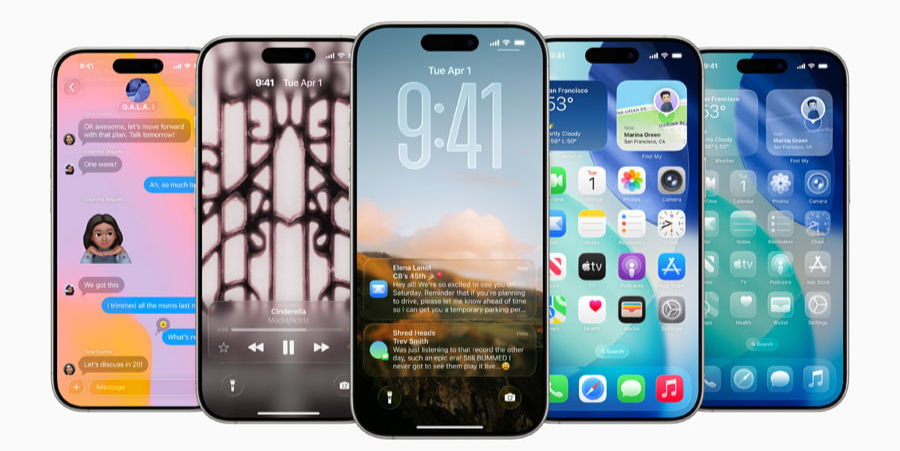
If your iPhone feels slow, hot, or battery-hungry after updating to iOS 26, here’s the no-nonsense playbook our iFix techs use in Bedford and The Colony. We’ll cover when a downgrade is possible, the exact steps, and the best performance settings to try first if you’d rather stay on iOS 26.
First: Can you actually downgrade?
Apple only lets you install iOS versions it is currently “signing.” Once Apple stops signing an older build, restoring to it won’t work and Finder/iTunes will throw an error near the end of the restore. Check signing status for your exact model before you do anything. We use: ipsw.me (choose your iPhone, look for “Signed” next to the version and don't worry about downloading their software).
Heads-up before you start
Back up first (iCloud or Mac/PC).
You can’t restore a newer backup (iOS 26) onto an older iOS (say, 25.x). If you don’t have an older backup, plan to set up as new or selectively restore data.
Restoring will erase the phone. Know your Apple ID password and turn off Find My when prompted.
If Apple isn’t signing the target version, skip to the performance fixes below.
How to downgrade
What you need
A Mac (Finder) or Windows PC (iTunes) + Apple cable.
The correct IPSW file for your model (optional; Finder/iTunes can also download it for signed versions). Check signing first.
Step-by-step
Back up:
iCloud: Settings ▸ [your name] ▸ iCloud ▸ iCloud Backup ▸ Back Up Now.
Mac/PC: Connect iPhone ▸ Finder/iTunes ▸ Back up now.
Put iPhone in Recovery mode (device-specific button combo), then connect to your computer. On Finder/iTunes you’ll see options to Update or Restore. Choose Restore.
Point to the IPSW (optional advanced): On Mac hold Option (Windows: Shift) while clicking Restore, pick the downloaded signed IPSW. If you don’t pick one, Finder/iTunes will fetch the latest signed build automatically.
Set up: After restore, set up as New iPhone or restore from an older-version backup (made on the version you just installed).
Customer Story: We had a wedding photographer’s iPhone throttling hard on iOS 26. Apple was still signing 25.7 that week, so we backed up, entered Recovery, restored to 25.7, then reinstalled only core apps. The phone cooled down and the Camera app stopped stuttering during 4K shoots.
Prefer not to downgrade? Optimize these settings first:
These are the highest-impact settings we use for customers who want to stay on iOS 26.
A. Free space & background activity
Keep 10–20 GB free (Settings ▸ General ▸ iPhone Storage). Spotlight and Photos indexing choke when storage is tight.
Background App Refresh → Off for social/video, leave On (Wi-Fi) for essentials only (Settings ▸ General).
Auto-Downloads & App Updates → off temporarily (Settings ▸ App Store) while you test performance.
B. Visual effects (big win on older chips)
Reduce Motion and Reduce Transparency (Settings ▸ Accessibility ▸ Motion / Display & Text Size). iOS animations are gorgeous but also expensive.
C. Push less, fetch less
Mail: change to Fetch/Manual for large inboxes (Settings ▸ Mail ▸ Accounts ▸ Fetch New Data).
Notifications: turn off non-critical app notifications or use Scheduled Summary (Settings ▸ Notifications).
D. Location, Photos & iCloud
Location Services: Set heavy apps to While Using and review System Services (Settings ▸ Privacy & Security ▸ Location Services).
Photos: If the phone is hot or slow after an update, pause iCloud Photos syncing overnight or keep the device on power and Wi-Fi to let indexing finish.
E. App and system hygiene
Update apps (App Store ▸ Updates). Lots of 26-day-one bugs get fixed by developers in the first weeks.
Safari cleanup: Settings ▸ Safari ▸ Clear History and Website Data (speeds up heavy browsing sessions).
Reset All Settings (Settings ▸ General ▸ Transfer or Reset iPhone ▸ Reset) preserves data and clears weirdness.
F. Deep clean (backup first)
Encrypted computer backup → Erase All Content and Settings → Restore from that backup. This removes cruft without changing iOS version.
Customer Story: A small business owner’s iPhone 13 was “laggy” after iOS 26. We freed 18 GB, disabled background refresh for five social apps, and turned on Reduce Motion. CPU spikes disappeared; battery life improved by ~20% over the next 48 hours.
When to wait vs. when to act
Wait if you can: Apple typically rolls out point releases quickly to squash early-release bugs so be sure to install those.
Act now if you’re missing shots, calls, or work: try the 12 tweaks above; if Apple is still signing your preferred version, consider a restore back.
Helpful links (official how-tos)
Back up your iPhone (iCloud or computer): Apple Support
Put iPhone in Recovery mode & restore: Apple Support
Restore to factory settings (Finder/iTunes): Apple Support
Check if your downgrade target is still signed: ipsw.me (third-party tool we use).
Need hands-on help?
Walk into iFix Bedford (3338 Harwood Rd.) or iFix The Colony (4300 Main St.) for a same-day diagnostic. We’ll check battery health, storage pressure, background processes, and if Apple is still signing, handle a clean restore with a data-first plan so you’re not starting from scratch.

FAQ
Will Apple help me downgrade? Not officially; Apple doesn’t support downgrading. Restores install the latest signed iOS for your device. Apple Support
Can I use my new (iOS 26) backup on an older iOS? No. You’ll need an older backup or set up as new. Apple Support
Is recovery mode the same as DFU? Recovery mode is enough for most restores. DFU is deeper and rarely required; Apple documents recovery mode for general users. Apple Support
Written by the iFix Pros team. We repair and optimize iPhones daily so the steps above come from real devices on our benches, not just theory. If you’d like us to perform the downgrade or tune-up for you, bring your phone by or book online.


https://soicauxsmb.com/ bữa thấy bạn bè nhắc nhiều quá nên mình cũng ghé thử cho biết. Mình không đọc sâu đâu, chủ yếu lướt xem họ làm trang kiểu gì thôi. Vào cái là thấy giao diện khá sáng và dễ nhìn, nội dung chia thành từng khối rõ ràng nên kéo xuống không bị rối mắt. Mình để ý mấy phần số liệu họ trình bày theo dạng bảng/cột nhìn gọn, liếc nhanh là hiểu ý chính chứ không phải ngồi dò từng dòng. Menu cũng nằm chỗ dễ thấy nên bấm qua lại vài mục cơ bản khá tiện, không phải tìm lâu. Nói chung lướt tầm vài phút là quen tay vì bố cục dạng khối và bảng…
Nhà cái ONBET mình lướt thử vì thấy bạn bè nhắc hoài, kiểu vào xem giao diện có rối không thôi. Mở trang lên thấy họ làm bố cục khá thoáng, chia từng khối nội dung nhìn phát là hiểu, không bị dồn chữ kín màn hình. Mình thích nhất là phần giới thiệu để thông tin giấy phép PAGCOR từ 2016 khá ngay ngắn, nằm chỗ dễ thấy chứ không phải kéo xuống mỏi tay mới gặp. Thanh điều hướng cũng đặt hợp lý, bấm qua lại giữa các mục không bị giật lag hay load lâu. Nói chung cảm giác như họ chăm chút phần trình bày hơn nhiều web cùng kiểu, nhất là cách họ đặt tiêu…
sun win dạo này thấy nhiều người nhắc quá nên mình cũng bấm vào coi thử cho biết thôi. Mình không có ngồi đọc kỹ hay làm gì phức tạp, chỉ lướt vài phút xem trang họ bố trí ra sao. Cảm giác đầu tiên là giao diện nhìn sáng sủa, khoảng trống vừa đủ nên không bị ngộp. Mình để ý mấy phần nội dung được chia thành từng khối rõ ràng, kéo xuống tới đâu là biết đang ở mục nào tới đó, không bị rối. Cái mình thích nhất là họ hay dùng kiểu trình bày dạng bảng cột nên nhìn qua là nắm ý chính nhanh, khỏi phải đọc một đống chữ liền tù tì. Menu…
Website KUWIN mình ghé thử kiểu tiện tay thôi, chủ yếu xem giao diện và cách họ trình bày nội dung. Cảm giác đầu tiên là bố cục khá thoáng, nhìn không bị rối mắt, mấy mục quan trọng được tách ra rõ nên lướt nhanh vẫn nắm được. Mình có đọc qua phần giải đáp thì thấy họ nói kết quả game chạy theo RNG chuẩn quốc tế, giải thích ngắn gọn nên người mới cũng hiểu đại khái là không có chuyện can thiệp linh tinh. Với lại phần nạp rút họ mô tả xử lý tự động qua kết nối API với ngân hàng ví, nghe cũng hợp lý và dễ hình dung quy trình. Nói chung…
tylekeo dạo này mình thấy nhiều người nhắc nên tò mò bấm vào thử xem giao diện thế nào thôi. Mình không có ngồi soi từng mục hay nội dung chi tiết, chủ yếu lướt qua cách họ sắp xếp trang cho dễ nhìn. Ấn tượng đầu là bố cục khá thoáng, các phần được chia theo khối rõ ràng nên kéo xuống không bị “ngợp”. Mình thích kiểu menu để ngay chỗ dễ thấy, bấm qua lại giữa các mục cũng nhanh, không phải tìm vòng vòng. Mấy bảng thông tin hiển thị theo cột nhìn gọn, chữ không bị dính vào nhau nên đọc lướt vẫn nắm được ý. Nói chung vào xem vài phút là quen tay,…